Pages

Thursday, April 16, 2026

Ready-Made Gems

Our school district allows teachers and high school students to access Google's AI tool, Gemini. This includes access to Gems, a customized chatbot that can be used repeatedly for a specific purpose. For example, a Gem could be created to act as a study partner to help a student review and master content. 

✨ Explore these resources from leading educational technology experts to help you get started with tutorials and "plug-and-play" Gem prompts:

Thursday, October 16, 2025

Create a Choose-Your-Own-Adventure Game with MagicSchool

I saw this idea in Brian Buffington's newsletter, Buff Nuggets, and in MagicSchool's newsletter. I had to try it out! It took me just minutes to create a test prep game for South Carolina's Algebra I EOC exam. I was even able to add our state's printable standards and sample questions to the parameters by attaching PDF documents. I asked a math teacher friend to check out the game, and he was a fan.


Wednesday, September 24, 2025

Class Tools

Google released a Chromebook app designed to "make the most of class time." It allows teachers to lock student devices entirely, provide access only to shared resources, or allow unrestricted access to all apps on the device. One of the most exciting features of this app is live captioning that is translatable. I appreciate the app's simplicity and think it is a great alternative to other options designed to manage student use of Chromebooks. This app requires both teachers and students to use ChromeOS devices that are updated to version 137 or higher. Paid access to Google Education is required.


Thursday, July 24, 2025

AI Tools for Teachers in Google Classroom

Google added AI tools for teachers to Google Classroom.  You'll find them in your menu.  Check out this video to learn more!


Friday, May 30, 2025

Canva Design School Courses

Canva offers free online courses through their Design School.  I love the way these course are designed.  Each course includes an intro video and an activity.  This playground is an editable presentation that explains a skill on one slide and gives participants a chance to practice the skill on the next slide.  It is easy to leave a lesson and come back to it later.

Courses Designed for Teachers:

  • Teacher essentials
  • AI in the classroom
  • Canva for the classroom
Course Designed for Students: Canva design skills for students


Monday, May 19, 2025

AI is Doing My Students' Homework

 It seems some students are using AI to write their papers and complete their assignments.  Check out these tips if you suspect AI is doing your students' work.

πŸ’‘Tip 1: Require the use of Google Docs for writing.  Students can still use another tool to "publish" their work AFTER they create a draft in Google Docs.  Matt Miller recommends using the inspect writing feature included with the Brisk Teaching Chrome extension to replay every edit a student makes.  Check out his post and view his explanation.

πŸ’‘Tip 2: Use Blocksi's assessment feature to limit students to Google Classroom and Google Docs.

  • Start a class.
  • Click assessment.
  • Click web apps.
  • Click Google Classroom.
  • Click web apps again.
  • Click Google Docs.
  • Click confirm.

πŸ’‘Tip 3: Use Blocksi's plagiarism detector to check for the likelihood of AI generated text.  This tool (or any AI detector) should never be used as definitive proof.


Wednesday, March 12, 2025

Google Vids

Have you checked out Google's video editor?  Google Vids can be used collaboratively and is easy to use thanks to its similarity to other Google Workspace apps.  Videos created with Google Vids have a maximum length of 10 minutes and a computer or chromebook is required to edit/create.  Open a new tab in Chrome and click the app launcher (waffle) to find the Google Vids app.  You may need to scroll down a bit to find it.  View the video below for a quick overview to help you get started.


Tuesday, February 4, 2025

New Chromebook Feature

Chromebooks have a new accessibility feature for people who have impaired mobility.  This feature is called face control and allows users to scroll and click with facial gestures.  The actions and gestures can even be customized.  Enabling face control AND dictation opens the door to so many possibilities for someone with limited mobility.

How to control your chromebook with your face:
  • Enable face control in the accessibility menu.
  • Smile to left click and open your mouth to scroll.
  • Use head movements to control the mouse.


Tuesday, January 28, 2025

Make Fillable PDFs with Canva & DocHub


One of my teacher friends asked how to make a PDF designed with Canva into a fillable PDF.  This request sparked new learning.  I had never made a fillable PDF before.  Fillable PDFs may not be very Chromebook friendly, but this is still pretty cool.  I love learning something new!

Here's how to turn a design created in Canva into a fillable PDF:
  • Download the design from Canva as a standard PDF.
  • Upload this PDF to DocHub and click the create document button.
  • Click the manage fields button on the toolbar in DocHub.
  • Add text, paragraph, and/or checkbox fields to your document.
  • Download a PDF from DocHub.  This is the PDF that will be fillable.

Wednesday, October 30, 2024

MagicSchool for Students

 MagicSchool has quickly become my favorite time saver.  I love their tools for teachers and their chatbot, Raina.  I thought I couldn't love MagicSchool anymore than I do.  I was wrong.  Magic School now includes tools for students.  Teachers create rooms, select the tools to make available, and invite students to join the room.  A few of the available tools include: writing feedback, research assistant, tutor me with AI, language learning tutor, image generator, and character chatbot.  Teachers can pause the room, lock the room, and view all student/AI interactions.  Students learn how to use AI responsibly in a safe environment and teachers can feel good about it.  Want to learn more?  Check out this video.


Tuesday, April 18, 2023

Leaving? Take Your Google Files with You

Did you know that you can take files created with and stored in your school district Google account with you if you are leaving?  You can!  It is possible to create an archive, download files individually, or even transfer files to a personal Google account.  It is NOT possible to transfer files from one school district Google account to another school district account.  Planning ahead is required and we recommend a different process for staff members and students.  See the directions below!

Directions for Faculty/Staff

Directions for Students

Wednesday, March 22, 2023

One Slide Summaries

One slide summary assignments give students an opportunity to create and present in a single class period.  This kind of assignment works best if students are place in teams of 2 to 3 and are tasked with summarizing related but differing content.  Here is a recent example of a one slide summary assignment:

  • Students were placed in teams and assigned one video to view from a YouTube playlist.
  • Teams were given 20 minutes to view the assigned video AND create a summary slide. 
  • A representative from each team shared their summary slides with the class.
The videos in the playlist ranged from around 2 minutes to 7 minutes in length and were all related to the topic of concussions.  One video was about new concussion rules, one was about concussion tests, one gave tips for how to avoid concussions when playing football, and so on.  Five groups completed the assignment and shared their summaries with the class in less than an hour.

A clear explanation with an example and a timer are critical to success for this kind of assignment!

One Slide Summary Example:

Image of One Slide Summary Example


Thursday, January 12, 2023

Three Things I Learned This Week


Two of the three things I learned this week are related to working with PDFs which can be a frustrating endeavor and often involves the use of all kinds of extra stuff.  These two solutions keep it simple!

1. A Simple Way to Translate PDFs

I feel like we've been trying to find a good way to translate PDFs to other languages for forever!  I don't know why we didn't think of this sooner.
  • Go to translate.google.com and click Documents.  
  • Click to browse your computer and select the desired PDF
  • Select the desired language, click translate, and click download translation when it is done.
This works for PowerPoints and Word documents as well.  Need to translate Google Slides?  Go to the file menu and download the Slides as a PDF then use translate.google.com to translate the PDF.

2. Another Way to Annotate PDFs

This chromebook annotation option for PDFs is incredibly easy and requires no extensions.
  • Download the PDF and make sure it goes to your downloads NOT Google Drive.
  • Open the files app, go to downloads, and open the PDF.  (It should open in a window with a toolbar at the top.  If not, go back to files and downloads, right click on the PDF, and select Gallery).
  • Make your annotations and click Save.
The annotated PDF can then be uploaded or attached to an assignment, email, etc.  To save the annotated PDF to Google Drive, Click the 3 dots and select save as.

The third thing I learned this week was a common sense solution for maintaining an online Google Form on a chromebook for students to fill out in the main office.

3. A Better Way to Display Office Forms

There is often a Google Form that we'd like to be open on a chromebook for students to complete as the need arises throughout the school day.  The question of what account to sign in inevitably comes up along with the need to protect the user's Drive, email, etc.  This solution probably should have been obvious.
  • Use bitly to create a shortened version of the URL (web address) for the desired Google Form.
  • Power on the chromebook and select browse as guest.  (If the browse as guest option doesn't appear, contact the office of computing services.  Browse as guest is NOT an option on student chromebooks.)
  • Enter the shortened URL in the web address bar.

😊 These three things made my entire week better!  I hope someone else finds them useful, too.


Friday, September 9, 2022

Student Created GIFs and Review by Relay

One of my teacher friends and I worked together to come up with a different way of reviewing anatomical movements for both her Sports Medicine classes and her Medical Terminology classes.  Our brainstorming brought to mind The Learning Mixologist podcast/presentation by Kasey Bell and Holly Clark.  I love their recipe card template that encourages all of us to consider an activity we want to SHAKE UP and INFUSE with digital tools.

Here's what we did to breathe new life into this tired review activity:
  • Students created GIFs demonstrating assigned anatomical movements using Screencastify or Brush Ninja and submitted them via Google Classroom.
  • We flipped through the class submissions and discussed them.
  • I created a Google Slide presentation and added GIFs from all four classes.
  • The next day we took a few minutes to play a review game using the slides and BuzzIn.live! The game worked like this:
    • We divided the class into teams, lined up the teams, and placed a chromebook at the front of the line.  Teams joined the Buzz In game on the chromebooks.
    • I pulled up slides with GIFs submitted by other classes.
    • Students at the front of the line buzzed in for each team, identified the movement(s) on the slide, and then rotated to the back.  
    • The team who buzzed in first and answered correctly received a point that I jotted down on paper.  Members of the winning team received a small prize.
This activity took only part of the class period both days and led to some great discussion while working on and viewing the GIFs.


Tuesday, May 10, 2022

Creating AR Experiences & Illustrating Scenes in 3D


This past December a group of fantastic fifth graders and some super supportive staff members helped me combine some new-to-me tools with amazing results.

We started off by reading Corduroy by Don Freeman and designing 3D buttons with Tinkercad.  It was my first time using Tinkercad and Tinkercad's classroom feature.  Designing buttons led to some sandbox time designing tags with raised initials.  The pre-engineering teacher at our district's career and technology center 3D printed (and videoed the process) for us!  The students were so excited to receive their custom tags.

The next thing we read was "Stopping by Woods on a Snowy Evening" by Robert Frost.  We looked at several illustrations from different publications.  Students then designed their own 3D illustrations of a winter scene using Tinkercad.  They exported their illustrations and attached the files to a Google Classroom assignment.  I uploaded these files to the Merge EDU platform and added them to a collection.

Our culminating activity involved viewing their illustrations with the Merge Object Viewer app and a set of older iPhones and Merge Cubes.  Another fifth grade class joined in on the fun by participating in our gallery walk.

We all learned so much from this experience!  The students enjoyed the challenge and so did I.


Friday, October 15, 2021

Upgrade Your Google Meet Link!

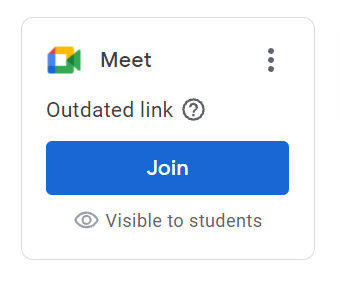
 Google updated the way Google Meet works inside Google Classroom.  Google removed the link in the banner on the stream and added a box with a  join button on the left side.


If you see a message that says your link is outdated, please upgrade your link! Upgrading your link will make your Meets more secure.

  • Students will be prevented from becoming the Meet host.

  • Students in your Google Classroom will be sent to a waiting room until you join.

  • Students who are NOT in your Google Classroom can only join if you click admit on the notification that appears on your screen.


Upgrading your link will change the URL (web address).  If students click a link posted in Seesaw, Schoology, sent via email, etc, you will need to post/send the new link.


Here’s how to upgrade your link:

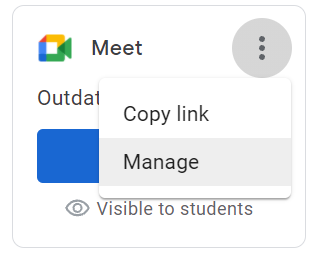
  • Click the 3 dots beside Meet on the Stream and click manage.

  • Click “upgrade link”.

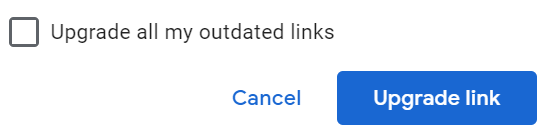
  • Check the box if you want to upgrade all the Google Meet links in all your Google Classrooms at the same time.  

  • Click the upgrade link button.


To copy your new Google Meet link, click the 3 dots beside Meet on the Stream and click “copy link”.

Monday, September 13, 2021

Important Google Forms Update

Icons made by Freepik from www.flaticon.com

Google Forms now automatically saves responses and progress for 30 days.  This means if you do NOT finish filling out a form BEFORE you click submit  (or something goes wrong when you try to submit) your work will still be there when you go back to the form.

Students can start working on a form and finish it at a later time WITHOUT starting over.

This update ONLY applies to Google Forms created with district accounts that are set to collect email addresses.  It DOES apply to quizzes and tests unless locked mode is turned on.

It is possible to turn this new feature off for Google Forms you create.
πŸ’‘ Leave it on if you want to give students additional time.
πŸ’‘ Turn it off if you are concerned about test security.

Directions for disabling autosave (turning it off):

  • Go to the editing side of your Google Form and click the settings wheel.
  • Go to the presentation tab.
  • Check the disable autosave box and click save.


Thursday, August 26, 2021

Tech PD that's Online & On-Demand

Greenwood 50 Educators:

Complete online tech PD and earn recertification points.  Completing the PD is as simple as viewing videos, visiting links, and completing a Google Form.  Go to the Tech PD page on the district's professional development website to check it out!

Tech PD Badge

Wednesday, August 25, 2021

Teaching via Google Meet

Are you using Google Meet and teaching students in the classroom and at home simultaneously?  This document shares suggestions for making everything work.

Tuesday, November 10, 2020

Rethinking Tech PD

COVID and the response to it has changed so many things.  Tech support and PD is arguably more necessary than ever and yet it seems harder to make it happen.  That's why I'm giving online, self-paced PD a try.  I'm offering a self-paced PD covering the basics of Schoology for renewal credit.  If all goes well, I hope to offer a series of professional learning opportunities.


If you are a Greenwood 50 educator and you would like to give this PD a try, let me know!