Pages

Friday, October 15, 2021

Upgrade Your Google Meet Link!

 Google updated the way Google Meet works inside Google Classroom.  Google removed the link in the banner on the stream and added a box with a  join button on the left side.
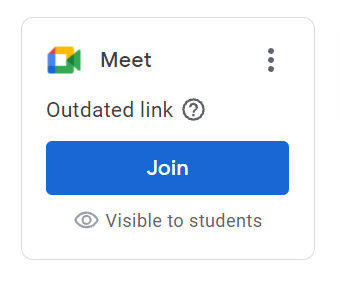

If you see a message that says your link is outdated, please upgrade your link! Upgrading your link will make your Meets more secure.

  • Students will be prevented from becoming the Meet host.

  • Students in your Google Classroom will be sent to a waiting room until you join.

  • Students who are NOT in your Google Classroom can only join if you click admit on the notification that appears on your screen.


Upgrading your link will change the URL (web address).  If students click a link posted in Seesaw, Schoology, sent via email, etc, you will need to post/send the new link.


Here’s how to upgrade your link:

  • Click the 3 dots beside Meet on the Stream and click manage.
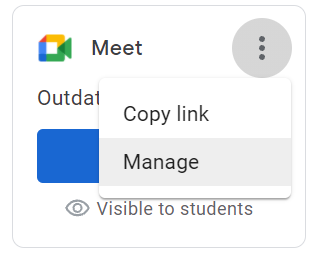
  • Click “upgrade link”.

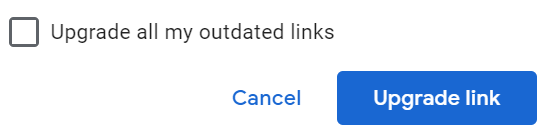
  • Check the box if you want to upgrade all the Google Meet links in all your Google Classrooms at the same time.  

  • Click the upgrade link button.


To copy your new Google Meet link, click the 3 dots beside Meet on the Stream and click “copy link”.

Monday, September 13, 2021

Important Google Forms Update

Icons made by Freepik from www.flaticon.com

Google Forms now automatically saves responses and progress for 30 days.  This means if you do NOT finish filling out a form BEFORE you click submit  (or something goes wrong when you try to submit) your work will still be there when you go back to the form.

Students can start working on a form and finish it at a later time WITHOUT starting over.

This update ONLY applies to Google Forms created with district accounts that are set to collect email addresses.  It DOES apply to quizzes and tests unless locked mode is turned on.

It is possible to turn this new feature off for Google Forms you create.
💡 Leave it on if you want to give students additional time.
💡 Turn it off if you are concerned about test security.

Directions for disabling autosave (turning it off):

  • Go to the editing side of your Google Form and click the settings wheel.
  • Go to the presentation tab.
  • Check the disable autosave box and click save.