Pages

Tuesday, May 10, 2022

Creating AR Experiences & Illustrating Scenes in 3D


This past December a group of fantastic fifth graders and some super supportive staff members helped me combine some new-to-me tools with amazing results.

We started off by reading Corduroy by Don Freeman and designing 3D buttons with Tinkercad.  It was my first time using Tinkercad and Tinkercad's classroom feature.  Designing buttons led to some sandbox time designing tags with raised initials.  The pre-engineering teacher at our district's career and technology center 3D printed (and videoed the process) for us!  The students were so excited to receive their custom tags.

The next thing we read was "Stopping by Woods on a Snowy Evening" by Robert Frost.  We looked at several illustrations from different publications.  Students then designed their own 3D illustrations of a winter scene using Tinkercad.  They exported their illustrations and attached the files to a Google Classroom assignment.  I uploaded these files to the Merge EDU platform and added them to a collection.

Our culminating activity involved viewing their illustrations with the Merge Object Viewer app and a set of older iPhones and Merge Cubes.  Another fifth grade class joined in on the fun by participating in our gallery walk.

We all learned so much from this experience!  The students enjoyed the challenge and so did I.


Friday, October 15, 2021

Upgrade Your Google Meet Link!

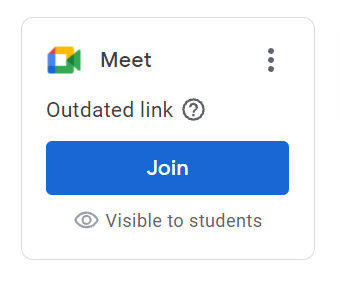
 Google updated the way Google Meet works inside Google Classroom.  Google removed the link in the banner on the stream and added a box with a  join button on the left side.


If you see a message that says your link is outdated, please upgrade your link! Upgrading your link will make your Meets more secure.

  • Students will be prevented from becoming the Meet host.

  • Students in your Google Classroom will be sent to a waiting room until you join.

  • Students who are NOT in your Google Classroom can only join if you click admit on the notification that appears on your screen.


Upgrading your link will change the URL (web address).  If students click a link posted in Seesaw, Schoology, sent via email, etc, you will need to post/send the new link.


Here’s how to upgrade your link:

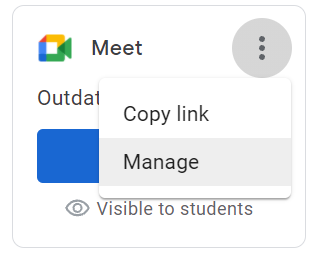
  • Click the 3 dots beside Meet on the Stream and click manage.

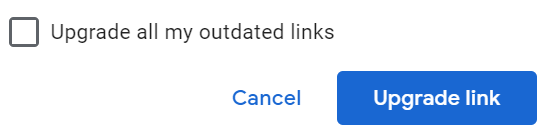
  • Click “upgrade link”.

  • Check the box if you want to upgrade all the Google Meet links in all your Google Classrooms at the same time.  

  • Click the upgrade link button.


To copy your new Google Meet link, click the 3 dots beside Meet on the Stream and click “copy link”.